Building AI Tools with the Claude API: What I Learned
I needed a firmer grasp on how Claude's API works, so I built two quick tools in Visual Studio Code. Alongside Claude and VS Code, I also used TypeScript...naturally.
As things progressed, I also came away with a deeper understanding of system design and integration engineering. That may be the even bigger payoff!
Table of Contents
- Assumptions
- How Claude Actually Works
- The Claude API
- What I Built With the Claude API
- The Save Selected Text
package.json - The Save Selected Text
extension.ts - Manually Testing In VS Code
- The Claude Prompt Reader
- The Claude Prompt Reader
package.json - The Claude Prompt Reader
history.ts - The Claude Prompt Reader
extension.ts - Conclusion
Assumptions
I assume that you're familiar with the Generative AI landscape that's so common at the time of this post. And if you want to use Claude to do all this, I'm also assuming the following:
- That you have the Claude Desktop app (the $20USD/month kind of app at the bare minimum).
- That you have a Claude API key...if you don't have one, get a Claude API key here.
- That you're willing to pay for Claude API credits if needed.
- And most importantly: that, at some point, you will read the Claude API documentation if you haven't already. Perhaps after you've read this post? 😊
Lastly, the current best practice for scaffolding out the codebase for a VS Code extension is to use Yeoman. I'll point out the VS Code-specific code snippets that Yeoman generates, but I assume you can handle the setup.
Read the documentation on how to scaffold out the codebase for VS Code extensions.
How Claude Actually Works
Most people know Claude as a desktop AI app or a CLI tool favored by developers. But knowing how it works under the hood is important.
At its core, Claude is a powerful, stateless piece of prediction software. You send Claude text and, based on its training, it guesses a response and sends it back.
The word "stateless" is key here. Claude doesn't remember previous conversations...only the one it's having at that very moment.
For every new prompt you send, the entire message history — your messages and Claude's responses — gets resent. This is how Claude gets the conversation's context.
(Side note: obviously, that message history can get big. That's why Claude will occasionally suggest you condense the conversation by running /compact. Also, Claude's API has a "prompt caching" feature that you can pass to requests. Doing both of these things can lower your Claude costs.)
The word "guesses" is also key: Claude predicts its answer but doesn't "think about it" like humans do. Instead, it pattern-matches against training data (a ton of human-written text) rather than reasoning through it consciously.
Claude is guessing how to respond to prompts it receives. That differs from "Predictive AI", which outputs a fixed result — a number, a category, a yes/no.
Claude doesn't predict a fixed outcome. Instead, it "generates" new content in response to whatever prompt it receives. This is the core definition of "Generative AI".
The Claude API
So Claude has a brain with superior guessing capabilities. The Claude API lets you pass those superior guessing capabilities to your applications.
This API is a REST API built on the standard request/response pattern. An application sends a formatted request to a remote server. The server responds to the request by sending structured data back.
At the time of this post's published date, the stable version of the Claude API is relatively small. It has four operations:
- Messages: Claude's primary API for sending messages to Claude and receiving responses as if a conversation was going on.
- Messages Batches: processes message requests asynchronously at a reduced cost.
- Token Counting: counts the amount of tokens in your request before sending it, helping you manage costs.
- Models: lets the application retrieve information about Claude's various models such as Sonnet and Haiku.
Two other API operations are in beta as of this writing:
- Files: sending and receiving files.
- Skills: used to create skills for custom agents.
What I Built With the Claude API
The two tools I wrote were VS Code extensions that used the Messages API:
- Save Selected Text: Right-click on selected text in VS Code to treat it like a prompt sent to Claude. Claude then responds to it via its API and saves its response in a text file. View the repo.
- Claude Prompt Reader: Similar to the Save Selected Text extension except you don't select and right-click on the text. Instead, the VS Code extension launches from the Command Palette, sends the prompt to Claude, then displays the response. View the repo.
The code is mostly the same across these extensions. So I'll walk through what the first one does while pointing out the unique code blocks of the second one.
The Save Selected Text package.json
You can view the complete package.json file on the repo. But here are the core configs as they relate to VS Code extensions:
// Save Selected Text package.json
...
"engines": {
  "vscode": "^1.74.0"
},
"categories": [
  "Other"
],
"main": "./out/extension.js",
"activationEvents": [],
...
"contributes": {
  "commands": [
    {
      "title": "Claude: Save Selected Text",
      "command": "save-selected-text.saveSelection",
    }
  ],
  "menus": {
    "editor/context": [
      {
        "command": "save-selected-text.saveSelection",
        "when": "editorHasSelection",
        "group": "navigation"
      }
    ]
  },
  "configuration": {
    "title": "Save Selected Text",
    "properties": {
      "saveSelectedText.apiKey": {
        "type": "string",
        "default": "",
        "description": "Your Anthropic API key"
      },
      "saveSelectedText.chooseYourModel": {
        "type": "string",
        "default": "claude-haiku-4-5-20251001",
        "enum": [
          "claude-haiku-4-5-20251001",
          "claude-sonnet-4-6",
          "claude-opus-4-6"
        ],
        "enumDescriptions": [
          "Claude Haiku — fastest and most affordable",
          "Claude Sonnet — balanced speed and intelligence (recommended)",
          "Claude Opus — most powerful, slower and more expensive"
        ],
        "description": "Select which Claude model to use"
      }
    }
  },
  ...
  "dependencies": {
    "@anthropic-ai/sdk": "^0.78.0"
  }
}
engines refers to the minimum version VS Code needs to run the extension: version 1.74 in this case. categories refers to how the extension should be categorized in the VS Code Extension marketplace.
main is the entry point for our app. In this case, it's the TypeScript-compiled .out/extension.js.
activationEvents controls when the extension loads and contributes registers commands/menus/settings. In VS Code 1.74+, activationEvents entries are optional — VS Code infers activation from contributes.
Developers targeting 1.74+ often keep activationEvents to signal they chose automatic activation. So I left it there to do just that.
The extension gets triggered by selecting a menu item with a right-click. In contributes.commands[], the title value defines the command's label in the menu.
That's "Claude: Save Selected Text" in this case. It looks like this when in action:
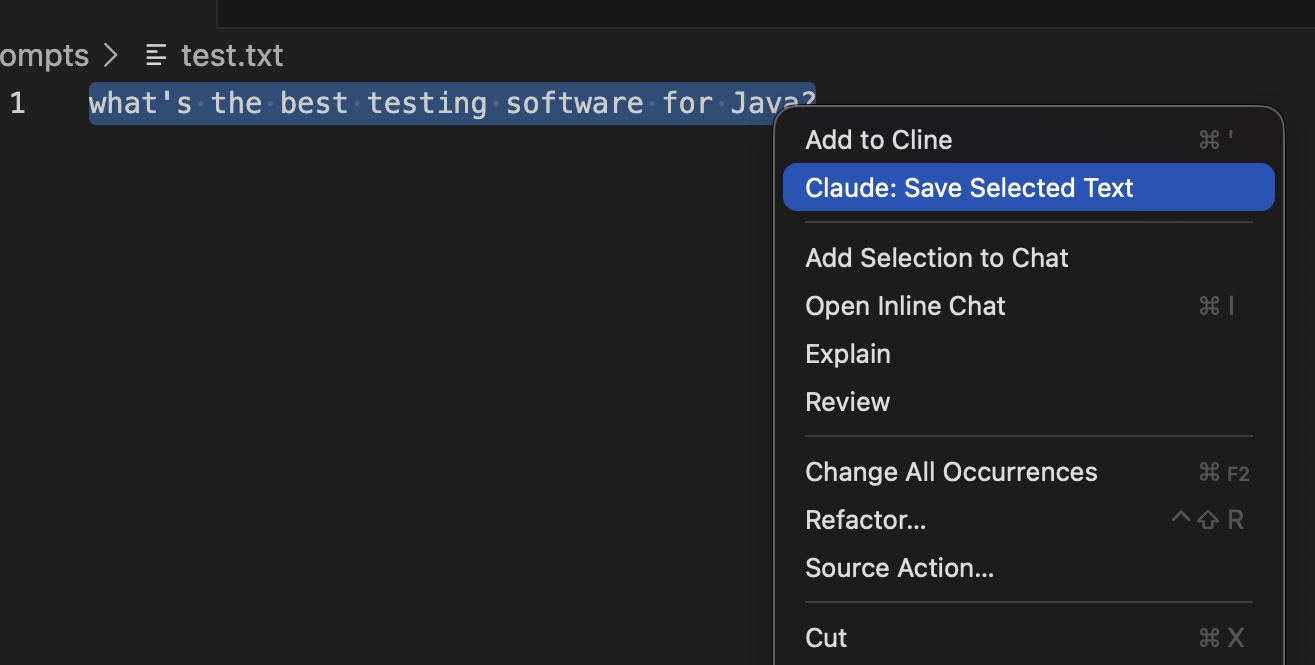
command registers the unique command ID with VS Code.
In menus["editor/context"][], the command value needs to be added, and must match the value in contributes.commands[]. when defines when the menu appears — when text is selected in this case. group decides which menu group the item appears in — navigation in this case.
The configuration object defines how the extension gets configured in VS Code's "Settings" window.
This object defines the extension name, input fields, and their descriptions in VS Code Settings. The enum array forces a dropdown menu of options to select. enumDescriptions creates a one-to-one mapping of the description of the items in enum.
The Anthropic SDK is needed to interact with Claude remotely and has been brought in as a dependency.
The Save Selected Text extension.ts
Your extension file can be named whatever you want, but a Yeoman-generated scaffold automatically names it extension.ts.
// extension.ts

import * as vscode from 'vscode';
import * as fs from 'fs';
import * as path from 'path';
import Anthropic from '@anthropic-ai/sdk';

export function activate(context: vscode.ExtensionContext) {

  let disposable = vscode.commands.registerCommand('save-selected-text.saveSelection', async () => {

    const editor = vscode.window.activeTextEditor;
    if (!editor) {
      vscode.window.showErrorMessage('No active editor found.');
      return;
    }

    const selectedText = editor.document.getText(editor.selection);
    if (!selectedText) {
      vscode.window.showErrorMessage('No text selected. Please highlight some text first.');
      return;
    }

    const workspacePath = vscode.workspace.workspaceFolders?.[0].uri.fsPath;
    if (!workspacePath) {
      vscode.window.showErrorMessage('No workspace folder found.');
      return;
    }

    const apiKey = vscode.workspace.getConfiguration('saveSelectedText').get('apiKey');
    if (!apiKey) {
      vscode.window.showErrorMessage('No API key found. Please add it in Settings → Save Selected Text → Api Key.');
      return;
    }

    const claudeModel = vscode.workspace.getConfiguration('saveSelectedText').get('chooseYourModel') ?? 'claude-haiku-4-5-20251001';

    // Create prompts folder if it doesn't exist
    const promptsPath = path.join(workspacePath, 'prompts');
    if (!fs.existsSync(promptsPath)) {
      fs.mkdirSync(promptsPath);
    }

    // Save selected text to a timestamped file
    const timestamp = new Date().toISOString().replace(/[:.]/g, '-');
    const fileName = `prompt-${timestamp}.txt`;
    const filePath = path.join(promptsPath, fileName);

    vscode.window.showInformationMessage(`Saved "${fileName}" — sending to Claude...`);

    const client = new Anthropic({ apiKey });

    await vscode.window.withProgress({
      location: vscode.ProgressLocation.Notification,
      title: `Claude is thinking...`,
      cancellable: false
    }, async () => {
      try {
        const message = await client.messages.create({
          model: claudeModel,
          max_tokens: 1024,
          messages: [{ role: 'user', content: selectedText }]
        });

        const response = message.content[0].type === 'text'
          ? message.content[0].text
          : 'No response received.';

        fs.writeFileSync(filePath, selectedText, 'utf8');

        const doc = await vscode.workspace.openTextDocument({
          content: `SELECTED TEXT:\n${selectedText}\n\n---\n\nCLAUDE'S RESPONSE:\n${response}`,
          language: 'markdown'
        });

        await vscode.window.showTextDocument(doc);

      } catch (error) {
        vscode.window.showErrorMessage(`Claude API error: ${error}`);
      }
    });
  });

  context.subscriptions.push(disposable);
}

export function deactivate() { }
Breaking this down...
import * as vscode from 'vscode';
import * as fs from 'fs';
import * as path from 'path';
import Anthropic from '@anthropic-ai/sdk';
...
We're importing the entire vscode module so our code can interact with the VS Code editor. We're also importing Node's fs and path modules to, respectively, read/write files and build file paths.
The Anthropic SDK is imported so we can send API requests to the Claude Messages API.
export function activate(context: vscode.ExtensionContext) {
  ...
}

export function deactivate() { }
The function that connects our extension to VS Code. It must be named activate.
It must also take a context parameter to access methods on the vscode object. For TypeScript's strong-typing requirements, the param must be typed as vscode.ExtensionContext.
deactivate() does exactly what it says...it "deactivates" our extension on shutdown.
let disposable = vscode.commands.registerCommand('save-selected-text.saveSelection', async () => {
  ...
});
context.subscriptions.push(disposable);
disposable is the function being executed when right-clicking on selected text. It doesn't have to be named disposable: Yeoman just does this by default.
But I'm guessing Yeoman does this to silently reference VS Code's internal Disposable object. vscode.commands.registerCommand() returns Disposable, which has the method dispose(). And Disposable.dispose() unregisters the command and releases its resources.
context.subscriptions.push(disposable) registers that disposable with the extension context. VS Code calls dispose() when the extension is deactivated — for any reason: a closed window, VS Code shutting down, etc.
...
const editor = vscode.window.activeTextEditor;
if (!editor) {
  vscode.window.showErrorMessage('No active editor found.');
  return;
}

const selectedText = editor.document.getText(editor.selection);
if (!selectedText) {
  vscode.window.showErrorMessage('No text selected. Please highlight some text first.');
  return;
}

const workspacePath = vscode.workspace.workspaceFolders?.[0].uri.fsPath;
if (!workspacePath) {
  vscode.window.showErrorMessage('No workspace folder found.');
  return;
}
...
disposable's first job is to confirm if all of the following is true:
- There's an open editor window.
- There's selected text.
- There's a VS Code workspace.
If any of those things are false, a return is fired off and exits that function early.
const apiKey = vscode.workspace.getConfiguration('saveSelectedText').get('apiKey');
if (!apiKey) {
  vscode.window.showErrorMessage('No API key found. Please add it in Settings → Save Selected Text → Api Key.');
  return;
}

const claudeModel = vscode.workspace.getConfiguration('saveSelectedText').get('chooseYourModel') ?? 'claude-haiku-4-5-20251001';
const apiKey and const claudeModel are your Claude API key and model-selection dropdown as they appear in VS Code Settings. They're located with the help of the getConfiguration() method and are formatted like this in VS Code:
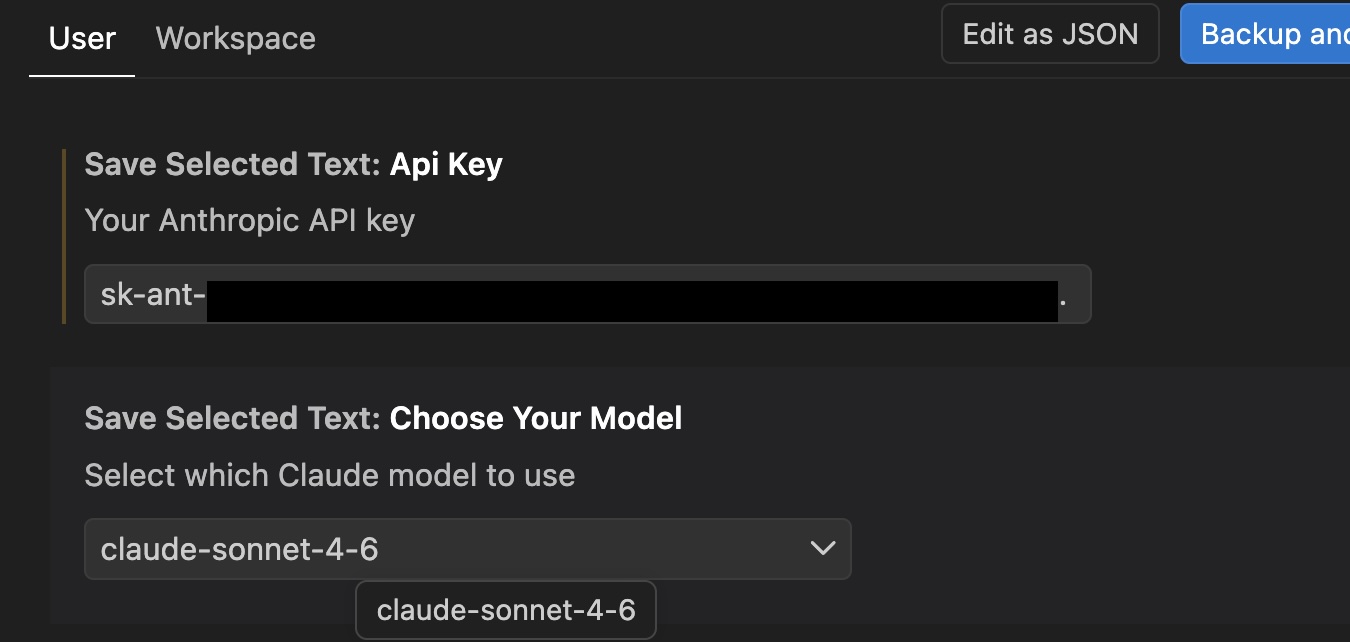
claude-haiku-4-5-20251001 is the default — used when no model is manually selected. At this post's publish date, Haiku is cheapest per token: i.e., it will save you money!!!.
const promptsPath = path.join(workspacePath, 'prompts');
if (!fs.existsSync(promptsPath)) {
  fs.mkdirSync(promptsPath);
}

const timestamp = new Date().toISOString().replace(/[:.]/g, '-');
const fileName = `prompt-${timestamp}.txt`;
const filePath = path.join(promptsPath, fileName);

vscode.window.showInformationMessage(`Saved "${fileName}" — sending to Claude...`);
First, Node's fs functionality checks if a prompts folder exists. It creates one on the fly if it doesn't.
Next, three things happen:
- The current date and time are stored in
const timestampusing JavaScript'sDate()object. timestampis used to create a file name that's stored inconst fileName.- Using Node's
pathfunctionality,promptsPathandfileNameare combined into a full file path. That path is stored inconst filePath.
Finally, VS Code displays an information message and sends the selected text to the Claude API. The file is only written to disk after Claude responds successfully. This prevents files from being created when an API call fails.
const client = new Anthropic({ apiKey });

await vscode.window.withProgress({
  location: vscode.ProgressLocation.Notification,
  title: `Claude is thinking...`,
  cancellable: false
}, async () => {
  ...
})
const client is an instance of the Anthropic SDK, initialized with the API key from VS Code's settings. We'll use that shortly to make a request to the Claude API.
vscode.window.withProgress configures the progress notification appearing at the bottom-right corner of the screen. It displays the text "Claude is thinking...".
We could put a Cancel button in that notification but choose not to. So we pass a cancellable: false value to our withProgress call.
async () => {
  try {
    const message = await client.messages.create({
      model: claudeModel,
      max_tokens: 1024,
      messages: [{ role: 'user', content: selectedText }]
    });

    const response = message.content[0].type === 'text'
      ? message.content[0].text
      : 'No response received.';

    fs.writeFileSync(filePath, selectedText, 'utf8');

    const doc = await vscode.workspace.openTextDocument({
      content: `SELECTED TEXT:\n${selectedText}\n\n---\n\nCLAUDE'S RESPONSE:\n${response}`,
      language: 'markdown'
    });

    await vscode.window.showTextDocument(doc);

  } catch (error) {
    vscode.window.showErrorMessage(`Claude API error: ${error}`);
  }
}
This callback makes the API request, handles Claude's response, and processes the returned text. It's wrapped in a standard JavaScript try/catch block.
The request is in const message = await client.messages.create(). It includes the model chosen in VS Code settings — the model that processes our prompt.
It defines the maximum number of tokens in Claude's response. It also defines who's sending the message, the user, and the content of the message.
const response is a string extracted from Claude's response object. It does a ternary check for if the message.content[0] is a text block, then pulls the text from it.
response contains Claude's response to our prompt (the selected text). It will be placed in a Markdown file (const doc) headlining our prompt as "SELECTED TEXT", and Claude's response to it headlined as 'CLAUDE'S RESPONSE'.
The selected text is saved to the prompts folder. A separate document showing both the prompt and Claude's response is then opened in a new VS Code tab.
Manually Testing In VS Code
Testing this is pretty straightforward. Open extension.ts, then click "Run > Start Debugging".
It's here where you both enter your Claude API key and choose which model you want to use. You would do this in "Code > Settings > Settings" on a Mac, or "File > Preferences > Settings" on a Windows PC.
And when the extension gets put to work in VS Code, it will work like this:
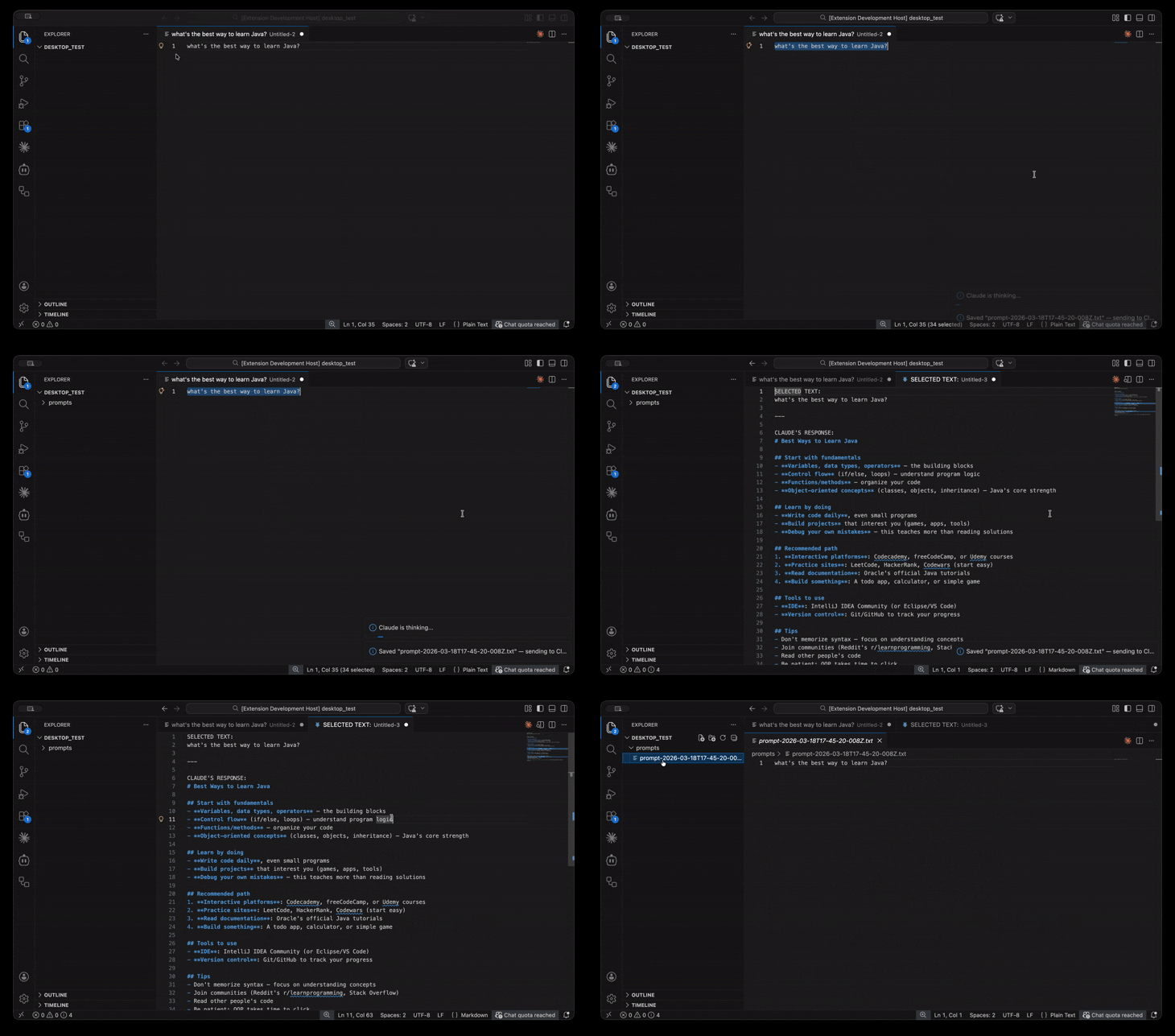
A new document shows the prompt under SELECTED TEXT and Claude's reply under CLAUDE'S RESPONSE. Plus, our prompt is saved in a time-stamped filename in our prompts folder. The prompts folder didn't exist when the extension ran, so one was created on the fly.
The Claude Prompt Reader
Where the "Save Selected Text" extension starts by right-clicking on selected text, the Claude Prompt Reader starts from the VS Code Command Palette. This extension looks at a text file and treats its text as our new prompt, then sends it out to the Claude API.
Also, the chat history is saved as a JSON file in a history folder.
The Claude Prompt Reader package.json
You can review the prompt reader's package.json file. There are slight differences between it and the Save Selected Text JSON file:
{
// Claude Prompt Reader package.json
...
"contributes": {
  "commands": [
    {
      "title": "Claude Prompt Reader: Read Prompts",
      "command": "claude-prompt-reader.readPrompts"
    },
    {
      "title": "Claude Prompt Reader: Clear History",
      "command": "claude-prompt-reader.clearHistory"
    }
  ],
  "configuration": {
    "title": "Claude Prompt Reader",
    "properties": {
      "claudePromptReader.apiKey": {
        "type": "string",
        "default": "",
        "description": "Your Anthropic API key"
      },
      "claudePromptReader.modelDropdown": {
        "type": "string",
        "default": "claude-haiku-4-5-20251001",
        "enum": [
          "claude-haiku-4-5-20251001",
          "claude-sonnet-4-6",
          "claude-opus-4-6"
        ],
        "enumDescriptions": [
          "Claude Haiku — fastest and most affordable",
          "Claude Sonnet — balanced speed and intelligence (recommended)",
          "Claude Opus — most powerful, slower and more expensive"
        ],
        "description": "Select which Claude model to use for processing prompts"
      }
    }
  }
}
...
}
VS Code uses claudePromptReader as the configuration namespace for this extension's settings. It's how VS Code finds our extension.
A second command, claude-prompt-reader.clearHistory, is added. There's no menus section; therefore, this extension launches from the Command Palette by default instead of a right-click menu.
The previous extension had a dropdown called saveSelectedText.chooseYourModel where the user could choose a Claude Model. This one does too, but it's called claudePromptReader.modelDropdown.
The Claude Prompt Reader history.ts
history.ts is a helper file used by the prompt reader's extension.ts. It exports a TypeScript interface and four helper functions.
// history.ts

import * as fs from 'fs';
import * as path from 'path';

export interface Message {
  role: 'user' | 'assistant';
  content: string;
}

export function getHistoryPath(workspacePath: string, promptFilePath: string): string {
  const historyDir = path.join(workspacePath, 'history');
  const promptFileName = path.basename(promptFilePath);
  return path.join(historyDir, `${promptFileName}.json`);
}

export function loadHistory(workspacePath: string, promptFilePath: string): Message[] {
  const historyPath = getHistoryPath(workspacePath, promptFilePath);

  if (!fs.existsSync(historyPath)) {
    return [];
  }

  try {
    const raw = fs.readFileSync(historyPath, 'utf8');
    return JSON.parse(raw) as Message[];
  } catch {
    return [];
  }
}

export function saveHistory(workspacePath: string, promptFilePath: string, messages: Message[]): void {
  const historyDir = path.join(workspacePath, 'history');

  if (!fs.existsSync(historyDir)) {
    fs.mkdirSync(historyDir, { recursive: true });
  }

  const historyPath = getHistoryPath(workspacePath, promptFilePath);
  fs.writeFileSync(historyPath, JSON.stringify(messages, null, 2), 'utf8');
}

export function clearHistory(workspacePath: string, promptFilePath: string): void {
  const historyPath = getHistoryPath(workspacePath, promptFilePath);

  if (fs.existsSync(historyPath)) {
    fs.unlinkSync(historyPath);
  }
}
Again, Node's fs module is used to read and write files and path module is used to build file paths. The Message interface defines the shape of each conversation history entry — a role and a content string.
Any chat history generated during a session is saved in JSON format and stored in a history folder. getHistoryPath() builds the file path for the chat history. loadHistory() then reads and returns it.
saveHistory() writes the full conversation history array to the JSON file, replacing whatever was there before. clearHistory() clears that history via a command in the Command Palette.
The Claude Prompt Reader extension.ts
// Claude Prompt Reader - extension.ts

import * as vscode from 'vscode';
import * as fs from 'fs';
import * as path from 'path';
import Anthropic from '@anthropic-ai/sdk';
import { Message, loadHistory, saveHistory, clearHistory } from './history';

export function activate(context: vscode.ExtensionContext) {

  // ─── Helper: send prompt to Claude with history ───────────────────────────
  async function sendToClaudeWithHistory(
    promptFilePath: string,
    promptText: string,
    progressTitle: string
  ): Promise {
    const apiKey = vscode.workspace.getConfiguration('claudePromptReader').get('apiKey');
    const claudeModel = vscode.workspace.getConfiguration('claudePromptReader').get('modelDropdown');

    if (!apiKey) {
      vscode.window.showErrorMessage('No API key found. Please add it in Settings → Claude Prompt Reader → Api Key.');
      return;
    }

    const workspacePath = vscode.workspace.workspaceFolders?.[0].uri.fsPath;
    if (!workspacePath) {
      vscode.window.showErrorMessage('No workspace folder found.');
      return;
    }

    const client = new Anthropic({ apiKey });

    await vscode.window.withProgress({
      location: vscode.ProgressLocation.Notification,
      title: progressTitle,
      cancellable: false
    }, async () => {
      try {
        const history = loadHistory(workspacePath, promptFilePath);

        const updatedHistory: Message[] = [
          ...history,
          { role: 'user', content: promptText }
        ];

        const message = await client.messages.create({
          model: claudeModel ?? 'claude-haiku-4-5-20251001',
          max_tokens: 1024,
          messages: updatedHistory
        });

        const response = message.content[0].type === 'text'
          ? message.content[0].text
          : 'No response received.';

        const finalHistory: Message[] = [
          ...updatedHistory,
          { role: 'assistant', content: response }
        ];
        saveHistory(workspacePath, promptFilePath, finalHistory);

        const turnCount = Math.floor(finalHistory.length / 2);
        const doc = await vscode.workspace.openTextDocument({
          content: `CONVERSATION TURN ${turnCount}\n\nPROMPT:\n${promptText}\n\n---\n\nCLAUDE'S RESPONSE:\n${response}`,
          language: 'markdown'
        });

        await vscode.window.showTextDocument(doc);

      } catch (error) {
        vscode.window.showErrorMessage(`Claude API error: ${error}`);
      }
    });
  }

  // ─── Helper: get watched file selection ───────────────────────────────────
  async function selectWatchedFile(promptsPath: string): Promise {
    const files = fs.readdirSync(promptsPath)
      .filter(f => f.endsWith('.txt') || f.endsWith('.md'));

    if (files.length === 0) {
      vscode.window.showErrorMessage('No .txt or .md files found in prompts folder.');
      return undefined;
    }

    if (files.length === 1) {
      return files[0];
    }

    return await vscode.window.showQuickPick(files, {
      placeHolder: 'Select a prompt file to watch'
    });
  }

  // ─── Command: Read Prompts ─────────────────────────────────────────────────
  const readPromptsCommand = vscode.commands.registerCommand(
    'claude-prompt-reader.readPrompts',
    async () => {
      const workspacePath = vscode.workspace.workspaceFolders?.[0].uri.fsPath;
      if (!workspacePath) {
        vscode.window.showErrorMessage('No workspace folder found.');
        return;
      }

      const promptsPath = path.join(workspacePath, 'prompts');
      if (!fs.existsSync(promptsPath)) {
        vscode.window.showErrorMessage('No prompts folder found in this workspace.');
        return;
      }

      // Check if the focused editor is a prompt file
      const activeEditor = vscode.window.activeTextEditor;
      const activePath = activeEditor?.document.uri.fsPath;
      const isPromptFile = activePath &&
        activePath.startsWith(promptsPath) &&
        (activePath.endsWith('.txt') || activePath.endsWith('.md'));

      let selectedFilePath: string;

      if (isPromptFile && activePath) {
        // Use the focused file directly — no QuickPick needed
        selectedFilePath = activePath;
      } else {
        // No prompt file focused — fall back to QuickPick
        const selectedFile = await selectWatchedFile(promptsPath);
        if (!selectedFile) { return; }
        selectedFilePath = path.join(promptsPath, selectedFile);
      }

      const promptText = fs.readFileSync(selectedFilePath, 'utf8');
      await sendToClaudeWithHistory(
        selectedFilePath,
        promptText,
        `Sending "${path.basename(selectedFilePath)}" to Claude...`
      );
    }
  );

  // ─── Command: Clear History ────────────────────────────────────────────────
  const clearHistoryCommand = vscode.commands.registerCommand(
    'claude-prompt-reader.clearHistory',
    async () => {
      const workspacePath = vscode.workspace.workspaceFolders?.[0].uri.fsPath;
      if (!workspacePath) {
        vscode.window.showErrorMessage('No workspace folder found.');
        return;
      }

      const promptsPath = path.join(workspacePath, 'prompts');
      if (!fs.existsSync(promptsPath)) {
        vscode.window.showErrorMessage('No prompts folder found.');
        return;
      }

      const scope = await vscode.window.showQuickPick(
        [
          { label: 'Clear history for one prompt file', value: 'single' },
          { label: 'Clear all history for all prompt files', value: 'all' }
        ],
        { placeHolder: 'What would you like to clear?' }
      );

      if (!scope) { return; }

      if (scope.value === 'all') {
        const confirm = await vscode.window.showWarningMessage(
          'This will delete history for all prompt files. Are you sure?',
          'Yes, clear all',
          'Cancel'
        );
        if (confirm !== 'Yes, clear all') { return; }

        const historyDir = path.join(workspacePath, 'history');
        if (fs.existsSync(historyDir)) {
          fs.readdirSync(historyDir).forEach(file => {
            fs.unlinkSync(path.join(historyDir, file));
          });
        }
        vscode.window.showInformationMessage('All history cleared.');
        return;
      }

      const selectedFile = await selectWatchedFile(promptsPath);
      if (!selectedFile) { return; }

      const filePath = path.join(promptsPath, selectedFile);
      clearHistory(workspacePath, filePath);
      vscode.window.showInformationMessage(`History cleared for "${selectedFile}".`);
    }
  );

  // ─── File Watcher Setup ────────────────────────────────────────────────────
  let watchedFile: string | undefined;

  const watcher = vscode.workspace.createFileSystemWatcher('**/prompts/**');

  watcher.onDidChange(async (uri) => {
    const fileName = path.basename(uri.fsPath);

    if (!uri.fsPath.endsWith('.txt') && !uri.fsPath.endsWith('.md')) {
      return;
    }

    // First save — ask the user which file to watch
    if (!watchedFile) {
      const workspacePath = vscode.workspace.workspaceFolders?.[0].uri.fsPath;
      if (!workspacePath) { return; }

      const promptsPath = path.join(workspacePath, 'prompts');
      watchedFile = await selectWatchedFile(promptsPath);
      if (!watchedFile) { return; }
    }

    // Only process the watched file
    if (fileName !== watchedFile) { return; }

    const promptText = fs.readFileSync(uri.fsPath, 'utf8');
    await sendToClaudeWithHistory(
      uri.fsPath,
      promptText,
      `Auto-detected change in "${fileName}", sending to Claude...`
    );
  });

  context.subscriptions.push(readPromptsCommand, clearHistoryCommand, watcher);
}

export function deactivate() { }
Claude Prompt Reader's extension.ts code has differences from the Save Selected Text one. Highlighting the differences...
...
import { Message, loadHistory, saveHistory, clearHistory } from './history';

export function activate(context: vscode.ExtensionContext) {
...
}

export function deactivate() { }
Same dependencies that were in "Save Selected Text" get imported in, along with history.ts. All the extension code still gets wrapped up in an activate function, and deactivate() still deactivates on shutdown.
async function sendToClaudeWithHistory(
  promptFilePath: string,
  promptText: string,
  progressTitle: string
): Promise {
  const apiKey = vscode.workspace.getConfiguration('claudePromptReader').get('apiKey');
  const claudeModel = vscode.workspace.getConfiguration('claudePromptReader').get('modelDropdown');
...
}
As mentioned earlier, every new prompt sent to Claude sends the entire chat history with it. Our sendToClaudeWithHistory() does exactly this.
It's a Promise-powered function taking three parameters:
promptFilePath: references the full path of our file in thepromptsfolder.promptText: references our prompt.progressTitle: references the text displayed in the VS Code progress notification, including the filename of our prompt file.
...
const client = new Anthropic({ apiKey });
...
await vscode.window.withProgress({
  location: vscode.ProgressLocation.Notification,
  title: progressTitle,
  cancellable: false
}, async () => {
  try {
    const history = loadHistory(workspacePath, promptFilePath);

    const updatedHistory: Message[] = [
      ...history,
      { role: 'user', content: promptText }
    ];

    const message = await client.messages.create({
      model: claudeModel ?? 'claude-haiku-4-5-20251001',
      max_tokens: 1024,
      messages: updatedHistory
    });

    const response = message.content[0].type === 'text'
      ? message.content[0].text
      : 'No response received.';

    const finalHistory: Message[] = [
      ...updatedHistory,
      { role: 'assistant', content: response }
    ];
    saveHistory(workspacePath, promptFilePath, finalHistory);

    const turnCount = Math.floor(finalHistory.length / 2);
    const doc = await vscode.workspace.openTextDocument({
      content: `CONVERSATION TURN ${turnCount}\n\nPROMPT:\n${promptText}\n\n---\n\nCLAUDE'S RESPONSE:\n${response}`,
      language: 'markdown'
    });

    await vscode.window.showTextDocument(doc);
  }
})
withProgress() reappears, taking in the same parameters it did in Save Selected Text in order to build a progress message. And, again, the code is wrapped in a try/catch.
const history points to the chat history stored in the JSON file in the history folder. const updatedHistory takes that value and appends the new prompt.
Again, const message makes a request to the Claude API, with updatedHistory included in the request. And, again, const response pulls the message text out from the response as a text string.
const finalHistory represents the final, updated chat history in the JSON file. The saveHistory() function from history.ts saves the new JSON in our history folder.
const turnCount keeps count of the number of single back-and-forth conversations. const doc includes that number with the response to the last prompt and places it in a text document.
await vscode.window.showTextDocument(doc) displays that document in a VS Code window.
async function selectWatchedFile(promptsPath: string): Promise {
  const files = fs.readdirSync(promptsPath)
    .filter(f => f.endsWith('.txt') || f.endsWith('.md'));

  if (files.length === 0) {
    vscode.window.showErrorMessage('No .txt or .md files found in prompts folder.');
    return undefined;
  }

  if (files.length === 1) {
    return files[0];
  }

  return await vscode.window.showQuickPick(files, {
    placeHolder: 'Select a prompt file to watch'
  });
}
selectWatchedFile will be part of a conditional check later in our code. It will check the prompts folder for either text or Markdown files to treat as a prompt.
If there aren't, an error message will show. If there are, showQuickPick() displays the files in prompts for us to choose from.
const readPromptsCommand = vscode.commands.registerCommand(
  'claude-prompt-reader.readPrompts',
  async () => {
    const workspacePath = vscode.workspace.workspaceFolders?.[0].uri.fsPath;
    if (!workspacePath) {
      vscode.window.showErrorMessage('No workspace folder found.');
      return;
    }

    const promptsPath = path.join(workspacePath, 'prompts');
    if (!fs.existsSync(promptsPath)) {
      vscode.window.showErrorMessage('No prompts folder found in this workspace.');
      return;
    }

    // Check if the focused editor is a prompt file
    const activeEditor = vscode.window.activeTextEditor;
    const activePath = activeEditor?.document.uri.fsPath;
    const isPromptFile = activePath &&
      activePath.startsWith(promptsPath) &&
      (activePath.endsWith('.txt') || activePath.endsWith('.md'));

    let selectedFilePath: string;

    if (isPromptFile && activePath) {
      // Use the focused file directly — no QuickPick needed
      selectedFilePath = activePath;
    } else {
      // No prompt file focused — fall back to QuickPick
      const selectedFile = await selectWatchedFile(promptsPath);
      if (!selectedFile) { return; }
      selectedFilePath = path.join(promptsPath, selectedFile);
    }

    const promptText = fs.readFileSync(selectedFilePath, 'utf8');
    await sendToClaudeWithHistory(
      selectedFilePath,
      promptText,
      `Sending "${path.basename(selectedFilePath)}" to Claude...`
    );
  }
);
const readPromptsCommand registers our "read-prompts" command to VS Code. Like "Save Selected Text," it exits early if things aren't present: specifically, the VS Code workspace and the prompts folder.
If they are, then checks begin for what files should be looked at as prompts. const activeEditor looks at the active editor window. const activePath gets the file system path of whatever file is open in it.
const isPromptFile then looks at that file and confirms it's either a text or Markdown file inside prompts. If that focused-on file is properly formatted (either a .txt or .md file), it gets stored in let selectedFilePath. But if it's not, our selectWatchedFile function displays a choice of files to be sent out as a prompt.
And whatever file gets chosen is stored in let selectedFilePath. If no file is chosen, the function exits.
From there, the selected file is read into const promptText. Finally, promptText gets sent out as a request via sendToClaudeWithHistory().
const clearHistoryCommand = vscode.commands.registerCommand(
  'claude-prompt-reader.clearHistory',
  async () => {
...
    const scope = await vscode.window.showQuickPick(
      [
        { label: 'Clear history for one prompt file', value: 'single' },
        { label: 'Clear all history for all prompt files', value: 'all' }
      ],
      { placeHolder: 'What would you like to clear?' }
    );

    if (!scope) { return; }

    if (scope.value === 'all') {
      const confirm = await vscode.window.showWarningMessage(
        'This will delete history for all prompt files. Are you sure?',
        'Yes, clear all',
        'Cancel'
      );
      if (confirm !== 'Yes, clear all') { return; }

      const historyDir = path.join(workspacePath, 'history');
      if (fs.existsSync(historyDir)) {
        fs.readdirSync(historyDir).forEach(file => {
          fs.unlinkSync(path.join(historyDir, file));
        });
      }
      vscode.window.showInformationMessage('All history cleared.');
      return;
    }

    const selectedFile = await selectWatchedFile(promptsPath);
    if (!selectedFile) { return; }

    const filePath = path.join(promptsPath, selectedFile);
    clearHistory(workspacePath, filePath);
    vscode.window.showInformationMessage(`History cleared for "${selectedFile}".`);
  }
);
Like readPromptsCommand, const clearHistoryCommand registers a command to VS Code, but for deleting the chat history. This command is also triggered by the Command Palette.
When opened, clearHistoryCommand runs showQuickPick(), which displays a list of options. The user's selection gets stored in const scope. You can delete either one of the chat history JSON files in the history folder or all of them.
Choosing to delete all of them will trigger const confirm and open a warning message about what you're about to do. The files get deleted using Node's fs.unlinkSync().
But if you just want to delete one file, const selectedFile kicks in and points to that one file. And in that case, the clearHistory() from history.ts is the function to delete it.
...
  let watchedFile: string | undefined;

  const watcher = vscode.workspace.createFileSystemWatcher('**/prompts/**');

  watcher.onDidChange(async (uri) => {
    const fileName = path.basename(uri.fsPath);

    if (!uri.fsPath.endsWith('.txt') && !uri.fsPath.endsWith('.md')) {
      return;
    }

    if (!watchedFile) {
      const workspacePath = vscode.workspace.workspaceFolders?.[0].uri.fsPath;
      if (!workspacePath) { return; }

      const promptsPath = path.join(workspacePath, 'prompts');
      watchedFile = await selectWatchedFile(promptsPath);
      if (!watchedFile) { return; }
    }

    if (fileName !== watchedFile) { return; }

    const promptText = fs.readFileSync(uri.fsPath, 'utf8');
    await sendToClaudeWithHistory(
      uri.fsPath,
      promptText,
      `Auto-detected change in "${fileName}", sending to Claude...`
    );
  });
The watcher code is straightforward. const watcher uses createFileSystemWatcher() function to watch changes to files in the prompts folder.
The file being watched at runtime gets stored in let watchedFile. watcher.onDidChange() fires when that file is saved.
First, it checks to see if a file is being watched. If not, selectWatchedFile() asks you to choose a file to watch. From there, it sends it to Claude for processing.
From that point on, the file is being watched.
When a file is saved and sent out as a prompt, the process looks like this:
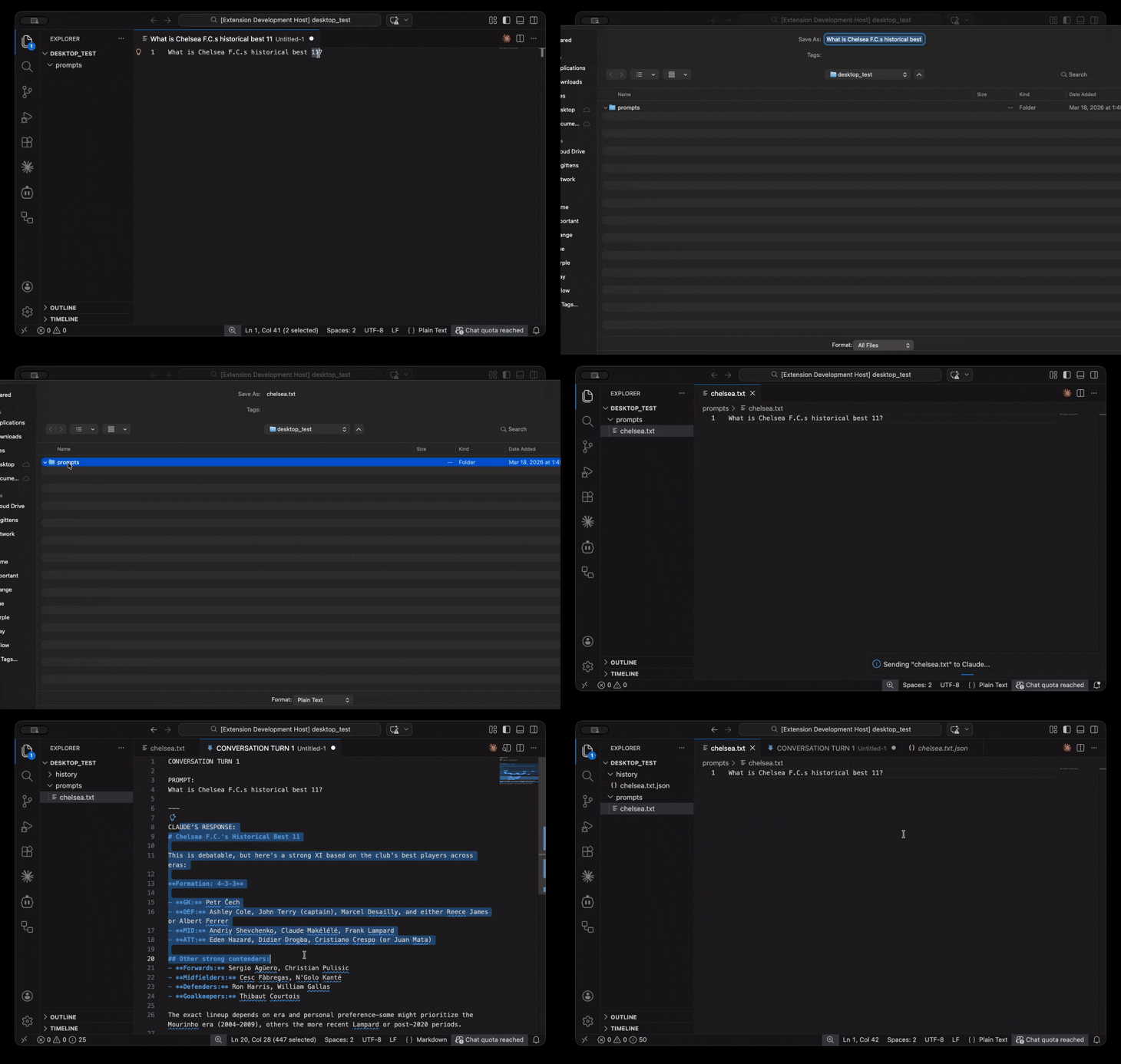
A text file is saved in the prompts folder. When "Claude Prompt Reader: Read Prompts" gets clicked on in the Command Palette, the file gets sent out as a prompt to the Claude API. A response comes back and the entire conversation is saved in the history folder.
The conversation can continue by updating the text file. Saving the file triggers the sending and receiving of prompts as well as saving the chat history.
That looks like this:
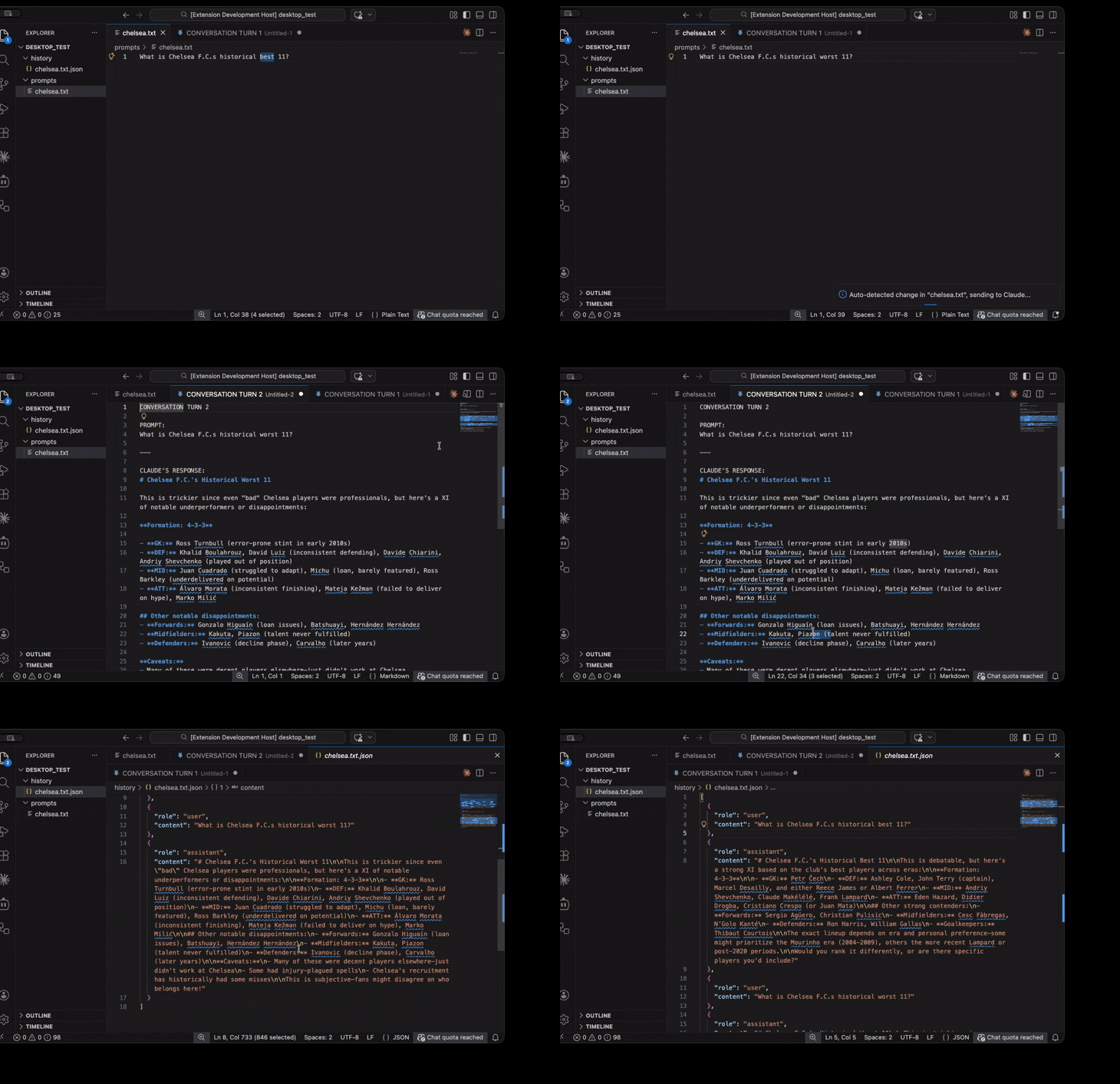
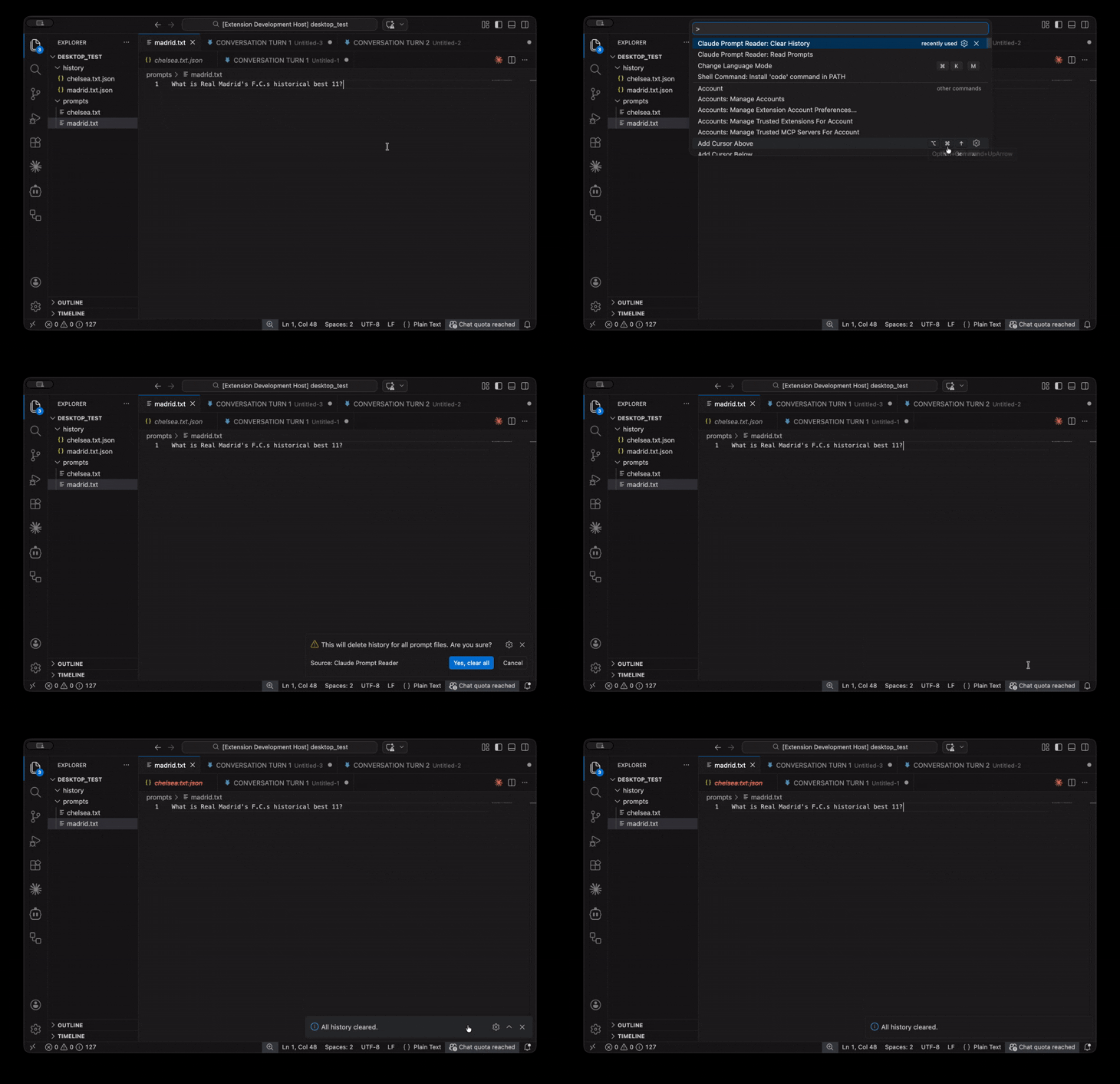
Finally, clear the entire chat history. We can do it for either one chat or all of them, but this is what it looks like for doing all of them:
Conclusion
After finishing these projects, I have a clearer sense of the role of Claude and similar GenAI tools in software development:
Both extensions follow the Extract → Transform → Load (ETL) design pattern. Extract the input. Send it to Claude. Load the result. That's the whole loop.
The extensions had to operate within VS Code's Extension API — its system for reading files, running commands, and talking to the editor. Claude was just one node in that system.
That's the truth about system design. Knowing what each part does, and where the boundaries are.
TypeScript held everything together at the boundaries. Wherever data crossed into or out of the Claude API, TypeScript enforced its shape.
The takeaway: Claude didn't replace the engineering. It eased the integration.
Claude, Copilot, ChatGPT and the like continue to make system design and integration engineering simpler to execute within software development. I believe this is where GenAI tooling will have its biggest impact — unless it already does.